

Technical SEO Complete Guide (2026)
Fix Crawling, Indexing, and Core Web Vitals to Rank Higher on Google. A step-by-step Technical SEO Audit and Website Performance Optimization Guide — including AI SEO, structured data, internal linking, and crawl budget strategies.
Why Technical SEO Matters More Than Ever
Search engine optimization has changed dramatically over the past decade. In the early days of SEO, ranking on Google was mostly about keywords and backlinks. However, modern search engines evaluate websites using far more sophisticated systems.
Google now evaluates websites based on: technical infrastructure, page speed, mobile performance, user experience, crawlability, and structured data. Even if your website has excellent content, it may never rank well if Google cannot properly crawl, render, and understand your pages. This is where Technical SEO becomes essential.
Technical SEO ensures that search engines can:
- Discover your pages
- Crawl your website efficiently
- Render the content correctly
- Index the pages in Google's database
- Deliver fast experiences to users
At the same time, website speed has become one of the most important ranking factors. Google introduced Core Web Vitals to measure real user performance, including page loading speed, visual stability, and interaction responsiveness.
Websites that fail these metrics often experience:
- Lower rankings in search results
- Higher bounce rates from frustrated users
- Reduced conversions and revenue
This guide provides a complete step-by-step system for fixing technical SEO problems and improving website performance — covering crawl audits, indexing fixes, Core Web Vitals, AI SEO, and automated audit workflows. Each chapter includes practical examples, code snippets, and step-by-step implementation guides.
Important: Readers should apply the techniques carefully and test changes before implementing them on live websites. Always take a backup of your website first.
How to Use This Guide: 6 parts covering: Part 1 — Foundations | Part 2 — Audit & Indexing | Part 3 — Speed Optimization | Part 4 — Core Web Vitals | Part 5 — Advanced SEO | Part 6 — AI SEO & Automation. Read end-to-end or jump directly to chapters relevant to your specific problems.
Table of Contents
22 chapters across 6 parts — click any chapter to jump directly.
Part I — Technical SEO Foundations
Chapters 1–2: Understanding what technical SEO is and how Google crawls the web.
Technical SEO refers to the process of optimizing the technical infrastructure of a website so search engines can crawl, render, and index it efficiently. Unlike traditional SEO strategies that focus on content and backlinks, technical SEO focuses on the underlying systems that support a website — including server configuration, website architecture, page speed, mobile optimization, crawl management, and structured data.
The Three Pillars of SEO

- Crawling & indexing
- Page speed & performance
- Mobile friendliness
- Structured data / schema
- Website architecture
- Keyword optimization
- Title tags & meta descriptions
- Headings (H1–H6)
- Internal links
- Content quality
- Backlinks (link building)
- Brand mentions
- Social signals
- Online reputation
Why Technical SEO Is More Important Than Ever
Google's algorithms have evolved significantly. Modern search engines use advanced systems such as machine learning, AI-driven ranking models, and real user performance metrics. These systems evaluate not only the relevance of content but also the quality of the user experience.
Google introduced the Page Experience update to evaluate how users interact with a website, including page loading performance, mobile usability, and visual stability — all of which directly impact rankings.
Core Web Vitals
Core Web Vitals measure real user experience using three key metrics:
Common Technical SEO Problems
- Slow page load times
- Poor mobile performance
- Crawl errors
- Duplicate content
- Broken internal links
- Improper redirects
- Missing structured data
Real Example: Why Technical SEO Wins Rankings
- Fast loading pages
- Optimized site structure
- Clean internal linking
- Structured data implemented
- Slow loading pages
- Broken internal links
- Poor crawl structure
- Missing schema markup
Even if both websites publish similar content, Website A will almost always rank higher. This demonstrates the critical importance of technical SEO in modern search engine optimization.
Google uses automated software known as Googlebot to crawl the internet. Googlebot continuously scans websites to discover new pages and update existing ones. The process follows several stages.
The 5-Stage Crawl Process
URL Discovery
Google discovers URLs through internal links, backlinks from other websites, XML sitemaps, and previously indexed pages. Pages with no internal links become orphan pages — Google cannot easily find them.
Crawling
Googlebot downloads the page's HTML code along with CSS files, JavaScript files, images, and structured data. If resources are blocked by robots.txt, Google may not fully understand the page.
Rendering
Google processes JavaScript and builds the final visual version of the page. Modern JavaScript-heavy frameworks can cause rendering delays. If rendering fails, Google may miss important content.
Indexing
Google evaluates content quality, relevance, duplicate content, page structure, and canonical tags. If the page provides value, it is added to the search index.
Ranking
Indexed pages compete based on relevance, backlinks, user experience, page speed, and technical performance. Pages excelling across all factors rank highest.
Crawl Budget Explained

Large websites must manage crawl budget — the number of pages Googlebot will crawl within a given time period. If a website wastes crawl budget on low-value pages, important pages may not be crawled frequently.
Common causes of crawl budget waste:
- Duplicate URLs
- Parameter URLs (e.g.,
?ref=home,?utm_source=google) - Pagination errors
- Infinite navigation filters
Part II — Technical SEO Audit & Indexing Optimization
Chapters 3–6: Auditing your website, fixing indexing issues, configuring robots.txt, and XML sitemaps.

A technical SEO audit is the process of evaluating a website's technical infrastructure to identify issues that prevent search engines from crawling, indexing, and ranking pages properly. A well-executed audit can uncover: crawl errors, slow page speed, duplicate content, broken internal links, incorrect redirects, and indexing problems.
Technical SEO Audit Workflow

Step 1 — Crawl the Entire Website
The first step in any technical SEO audit is to crawl the website using an SEO crawler. Popular tools include:

When reviewing crawl results, pay close attention to: pages returning 404 errors, redirect chains, duplicate titles, missing meta descriptions, and orphan pages.

Step 2 — Check Website Indexing in Google Search Console
Navigate to: Search Console → Indexing → Pages. Review indexed vs non-indexed pages.


Common indexing issues include:
- Discovered – currently not indexed
- Crawled – currently not indexed
- Duplicate without user-selected canonical
- Soft 404 errors
Step 3 — Analyze Website Architecture
A good rule of thumb: important pages should be reachable within 3 clicks from the homepage.
Homepage → Category Pages → Subcategory Pages → Articles
Step 4 — Analyze Internal Linking

Step 5 — Evaluate Page Speed
Use Google PageSpeed Insights, Lighthouse, and GTmetrix to measure LCP, INP, and CLS.


Indexing issues are among the most common technical SEO problems. Even if a website has excellent content, pages cannot rank if they are not indexed by Google.
Crawled – Currently Not Indexed: Googlebot crawled the page but chose not to include it. Reasons: thin content, duplicate content, low internal link signals. Fix: Improve content depth, add internal links, add schema markup.
Discovered – Currently Not Indexed: Google found the URL but hasn't crawled it yet. Cause: crawl budget limitations or poor internal linking. Fix: Improve internal linking and include the page in your XML sitemap.
Duplicate Without Canonical: Google detected duplicate pages. Fix: Use canonical tags to indicate the preferred version.
<link rel="canonical" href="https://example.com/page">
WordPress with Yoast SEO: Yoast SEO automatically adds canonical tags. Verify this feature is enabled in your Yoast SEO Plugin settings.
The robots.txt file controls how search engine crawlers access different sections of a website. Located at example.com/robots.txt.
User-agent: *
Disallow: /wp-admin/
Allow: /wp-admin/admin-ajax.php

Sitemap: https://example.com/sitemap_index.xml
Common Mistakes
Disallow: /wp-content/
This blocks CSS and JavaScript files needed for rendering — never do this.
Disallow: /wp-admin/
Allow: /wp-admin/admin-ajax.php
Testing Robots.txt
Google provides a tool in Search Console to test robots.txt rules. Testing confirms whether important pages are accessible to search engines.


An XML sitemap lists important URLs to help search engines discover content efficiently.
<url>
  <loc>https://example.com/seo-services</loc>
  <lastmod>2026-01-05</lastmod>
</url>
Submitting Your Sitemap to Google Search Console
You need to submit your website sitemap URL in Google Search Console.


For WordPress Websites: Using Yoast SEO Plugin
If your website uses WordPress with the Yoast SEO Plugin, it automatically creates an XML Sitemap. Enable the XML Sitemap feature in Yoast SEO plugin settings and click "View the XML sitemap".
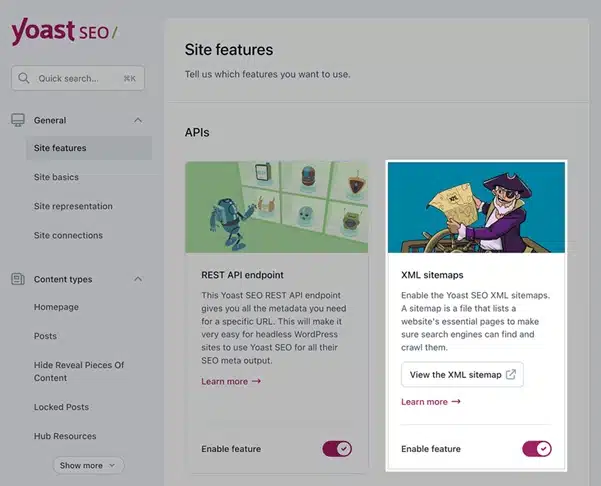
When you click "View the XML sitemap", your sitemap opens in the browser. Copy the URL path (e.g., /sitemap_index.xml) and submit it in Google Search Console → Indexing → Sitemaps.
Best Practices for XML Sitemaps

Part III — Website Speed Optimization
Chapters 7–13: Core Web Vitals, LCP, image optimization, TTFB, JavaScript, CSS, and CDN.

Google introduced Core Web Vitals to measure real-world user experience on websites. These metrics are based on real user data collected through Chrome browsers and directly impact search rankings.
How to Measure Core Web Vitals
Website performance can be tested using several tools. Use Google PageSpeed Insights at pagespeed.web.dev (insert your website URL instead of example.com).


Largest Contentful Paint measures how quickly the main content of a page becomes visible — usually hero images, banner images, large headings, or featured images.


Common Causes of Poor LCP
1. Large Images
hero-banner.jpg — Size: 1.8 MB
hero-banner.webp — Size: 180 KB
2. Slow Server Response Time (TTFB)
Slow TTFB results from: cheap hosting, overloaded servers, or poor caching configuration.
3. Render Blocking Resources
Large CSS and JavaScript files that must download before content displays increase LCP time.
Step-by-Step LCP Fix
Convert Images to WebP or AVIF Format
<img src="https://example.com/images/hero-image.webp"
     width="1200" height="700"
     alt="Technical SEO Guide">
Preload the LCP Image
<link rel="preload" as="image"
      href="https://example.com/images/hero-image.webp">
Improve Hosting
Recommended features: NVMe storage, server caching, modern PHP versions (8.2+), and HTTP/3 support.
Images often account for 60–80% of page weight on many websites. Poorly optimized images are one of the biggest causes of slow websites.
seo-banner.jpg — Size: 2 MB
seo-banner.webp — Size: 220 KB
Image Compression Tools
Lazy Loading
<img src="https://example.com/images/article-image.webp"
     loading="lazy" width="800" height="600">
Responsive Images
<img src="seo-image.webp"
     srcset="seo-image-400.webp 400w, seo-image-800.webp 800w"
     sizes="(max-width: 600px) 400px, 800px">

Time to First Byte (TTFB) measures how quickly a server responds to a browser request. The faster the server responds, the faster the page begins loading.


Causes of Slow TTFB
- Slow Hosting: Cheap shared hosting often suffers from overloaded servers
- No Server Caching: Without caching, the server must regenerate each page for every visitor
- Too Many Plugins: Many WordPress websites install dozens of plugins, slowing server processing
Fixing TTFB
Enable Server Caching
- Nginx FastCGI cache
- Varnish cache
- Redis object cache
Use a Content Delivery Network (CDN)
CDNs distribute website content across multiple servers worldwide, reducing latency for visitors regardless of their location.
Reduce Database Queries
Large numbers of database queries slow down page generation. Optimize plugins and themes to reduce unnecessary queries.
JavaScript powers many modern website features — animations, interactive menus, analytics tracking, and dynamic content loading. However, excessive or poorly optimized JavaScript can significantly slow down website performance. This problem is known as render-blocking JavaScript.
Page Speed Reports Highlighting JavaScript Issues


JavaScript Optimization Steps
Defer JavaScript
<script src="https://example.com/js/main.js" defer></script>
Use Async for Independent Scripts
<script src="https://example.com/js/analytics.js" async></script>
Remove Unused JavaScript
Audit for unused slider libraries, animation libraries, and outdated plugins. Removing unused code significantly reduces JavaScript execution time.
Code Splitting
Divide large JavaScript files into smaller chunks that load only when needed. This improves initial page load performance significantly.
Large or poorly optimized CSS files can slow page rendering. When the browser encounters CSS files, it must download and process them before displaying the page — making CSS a potential render-blocking resource.


CSS Optimization Steps
Minify CSS
body {
  background-color: white;
  font-size: 16px;
}body{background-color:#fff;font-size:16px}Remove Unused CSS

Use Chrome DevTools Coverage Report (F12 → Coverage) to identify unused CSS. Many WordPress themes load CSS not used on every page.
Inline Critical CSS
<style>
  .hero-title{font-size:42px;font-weight:bold}
  .hero-btn{background:#1a73e8;color:#fff;padding:14px 32px}
</style>
<!-- Remaining CSS loads asynchronously after -->
A Content Delivery Network (CDN) is a network of servers distributed across multiple geographic locations. CDNs store cached versions of website assets. When a user visits, the CDN serves content from the server closest to their location — significantly reducing loading times.


Benefits of Using a CDN
- Faster Load Times: Visitors receive content from nearby servers
- Reduced Server Load: The origin server handles fewer requests
- Improved Security: DDoS protection and malicious traffic filtering
- Better Uptime: Content served from multiple locations
Popular CDN Providers
Basic CDN Setup Steps
- Create a CDN account with your chosen provider
- Add your domain (e.g., example.com)
- Update DNS settings to point to CDN
- Enable caching rules for static assets
Part IV — Core Web Vitals Optimization
Chapters 14–15: Fixing Cumulative Layout Shift and Interaction to Next Paint.
Cumulative Layout Shift measures visual stability. Layout shifts occur when page elements move unexpectedly while the page loads — creating a poor user experience where users may accidentally click on the wrong element.

Common Causes of CLS
1. Images Without Dimensions
<img src="banner.jpg">
<img src="banner.jpg"
     width="1200"
     height="600">
2. Ads Loading Dynamically
Advertisements that load after page content can push elements down. Always reserve space for ads using CSS min-height.
3. Web Fonts Causing Reflow (FOUT/FOIT)
@font-face {
  font-family: 'MyFont';
  src: url('myfont.woff2');
  font-display: swap; /* Prevents FOIT/FOUT */
}
Interaction to Next Paint measures how quickly a page responds to user interactions — clicking buttons, opening menus, and submitting forms. INP replaced FID as a Core Web Vital metric in 2024.

Common Causes of Poor INP
- Heavy JavaScript execution blocking the main thread
- Long main-thread tasks (tasks over 50ms)
- Excessive event listeners
- Large third-party scripts
3 Steps to Fix INP
Break Long JavaScript Tasks
Split heavy functions into smaller chunks using setTimeout, requestIdleCallback, or Web Workers for intensive operations.
Reduce Third-Party Scripts
Remove unnecessary advertising scripts, tracking scripts, and social media widgets. Each adds processing overhead and can delay user interactions.
Optimize Event Handlers
Use debouncing and throttling for events like scroll, resize, and input to prevent excessive function calls that delay the main thread.
Part V — Advanced Technical SEO
Chapters 16–18: Structured data, internal linking architecture, and fixing duplicate content.
Structured data helps search engines understand the meaning of content, enabling rich results like FAQ snippets, product ratings, recipe cards, and article previews.
How to Generate Structured Data Easily
Use this free schema generator: technicalseo.com/tools/schema-markup-generator


Article Schema Example
{
  "@context": "https://schema.org",
  "@type": "Article",
  "headline": "Technical SEO Guide",
  "author": {
    "@type": "Person",
    "name": "SEO Expert"
  },
  "publisher": {
    "@type": "Organization",
    "name": "OnlineMarketingBull"
  }
}
FAQ Schema Example
{
  "@context": "https://schema.org",
  "@type": "FAQPage",
  "mainEntity": [{
    "@type": "Question",
    "name": "What is Technical SEO?",
    "acceptedAnswer": {
      "@type": "Answer",
      "text": "Technical SEO improves crawling, indexing, and website performance."
    }
  }]
}
Validate Your Schema

After implementation, validate at: search.google.com/test/rich-results
- Enter your URL and run the test
- Confirm schema is detected
- Request indexing in Search Console

Internal linking is one of the most powerful but underutilized technical SEO strategies. Internal links help search engines: discover pages, understand topic relationships, and distribute ranking authority.
Website Architecture Visualization

Orphan Pages Report in Screaming Frog

How to Find Orphan Pages with Screaming Frog
Crawl the Website Normally
Open Screaming Frog, enter your website URL, click Start. This collects all internally linked pages.
Enable Orphan Page Detection
Go to Configuration → Spider → Crawl. Enable "Crawl Linked XML Sitemaps". Also connect Google Analytics or GSC via Configuration → API Access.
Add External URL Sources
Option A: XML Sitemap — Configuration → Spider → Crawl → Tick "Crawl Linked XML Sitemaps". Option B: Google Analytics → Configuration → API Access. Option C: Google Search Console → Configuration → API Access. Option D: Mode → List → Upload CSV.
View Orphan Pages Report
Go to Reports → Orphan Pages. URLs in your sitemap/GA/GSC but NOT discovered through internal links are your orphan pages.
Topic Clusters
Pillar: example.com/technical-seo
  ↓ links to Cluster: example.com/core-web-vitals
  ↓ links to Cluster: example.com/page-speed-optimization
  ↓ links to Cluster: example.com/crawl-budget-guide
Each cluster page links back to the pillar page.Use Descriptive Anchor Text: Replace "click here" with descriptive text like "technical SEO audit checklist". This helps search engines understand the context and topic of linked pages.
Duplicate content occurs when multiple URLs contain identical or very similar content. Search engines struggle to determine which version should rank — causing ranking signals to split.

https://example.com/seo-guide         ← preferred
https://example.com/seo-guide/        ← duplicate (trailing slash)
https://example.com/seo-guide?ref=home ← duplicate (parameter)
https://example.com/seo-guide?utm_source=google ← duplicate (UTM)
Detecting Duplicate Content with Screaming Frog

In Screaming Frog: crawl your site, then navigate to the Content tab and select Exact or Near Duplicates filters. Also check Search Console: Indexing → Pages → Duplicate without canonical.
Step-by-Step Fixes
Add Canonical Tags
<link rel="canonical" href="https://example.com/seo-guide">
<!-- WordPress: Yoast SEO handles this automatically -->
301 Redirect Duplicate URLs
Redirect 301 "/old-page.html" http://www.yourwebsite.com/new-page.html
# WordPress: Use the Redirection plugin for easy management
Remove Parameter Indexing
Prevent URLs like example.com/product?sort=price from being indexed. Use canonical tags or noindex directives on parameter pages.
Part VI — AI Technical SEO & Automation
Chapters 19–22: AI SEO, Google AI Overviews, AI-powered audits, 50+ prompts, case study, and the complete checklist.
Search engines are evolving rapidly with AI integration. Modern search results increasingly rely on AI-generated summaries known as AI Overviews in Google Search. AI systems analyze webpages and extract structured information to generate answers directly in search results.


How AI Systems Select Content
Optimizing for AI Search
Add Clear Answer Sections
Place a concise definition or answer at the beginning of each section. AI systems extract these clear answers to generate overviews.
Use Structured Data (FAQ Schema)
Add FAQ schema markup to explicitly mark question-and-answer pairs that AI systems can extract directly from your page.
Improve Core Web Vitals
Optimize LCP, INP, and CLS. AI systems prefer fast, stable pages when selecting sources for overviews.
AI has transformed how technical SEO audits are performed. Instead of spending 5–10 hours on manual analysis, AI can process thousands of URLs in minutes and identify hidden patterns.


- Check pages manually one by one
- Export data from tools
- Analyze spreadsheets manually
- Time required: 5–10 hours
- Upload crawl data to AI
- AI identifies all problems
- AI generates prioritized fixes
- Time required: 15–30 minutes
Key AI Audit Components
- Crawlability Analysis: Broken links, crawl depth, orphan pages, redirect chains, robots.txt issues
- Indexability Audit: Noindex tags, canonical errors, duplicate URLs, blocked resources, soft 404 pages
- Core Web Vitals & Page Speed: Render-blocking scripts, large images, slow server response, JavaScript delays
- Internal Linking Analysis: Orphan pages, weak pages, broken internal links, poor anchor text distribution
- Duplicate Content Detection: Parameter URLs, canonical conflicts, near-duplicate pages
- Structured Data Audit: Missing schema, incorrect types, validation errors
- Log File Analysis: Googlebot crawl frequency, crawl budget waste, rarely crawled important pages
Best AI Tools for Technical SEO Audits (2026)
50+ AI Prompts for Technical SEO Analysis
Use these prompts with ChatGPT, Claude, or Gemini after exporting data from Screaming Frog, Search Console, or PageSpeed Insights:
🔍 Crawl Analysis Prompts
📑 Indexing Issues Prompts
🔄 Duplicate Content Prompts
🔗 Internal Linking Prompts
⚡ Page Speed & Core Web Vitals Prompts
🔧 JavaScript SEO Prompts
📊 Schema Markup Audit Prompts
📁 Log File Analysis Prompts
📋 Reporting & Advanced Prompts
Key Takeaway: Without AI: manual data analysis takes 5–10 hours. With AI: automated pattern detection takes 15–30 minutes. This allows SEO professionals to focus on strategy instead of manual auditing. AI doesn't replace SEO experts — it makes them far more efficient.
To understand how technical SEO improvements impact rankings, let's examine a hypothetical audit of example.com. An audit revealed several critical issues affecting performance.
Problem 1 — Slow LCP (Hero Image 1.7MB)
hero-image.jpg — 1.7 MB
LCP score: 4.1 seconds (POOR)
hero-image.webp — 180 KB (-89%)
LCP score: 2.2 seconds (GOOD)
Problem 2 — Duplicate URLs Without Canonical Tags
<link rel="canonical" href="https://example.com/seo-guide">
Note: WordPress + Yoast SEO handles this automatically.
Problem 3 — Orphan Pages (No Internal Links)
example.com/technical-seo-guide
  → Added link to: example.com/page-speed-optimization

example.com/core-web-vitals-guide
  → Added link to: example.com/page-speed-optimization
Results After All Optimizations
- ✅ LCP improved from 4.1s → 2.2s (Good)
- ✅ INP improved from 380ms → 160ms (Good)
- ✅ CLS improved from 0.18 → 0.04 (Good)
- ✅ Crawl efficiency increased — more important pages crawled frequently
- ✅ Indexing rate improved for previously orphaned pages
- ✅ Organic traffic began increasing within several weeks
🔍 Crawling and Indexing
⚡ Website Speed
🏗️ Website Structure
📊 Structured Data
🖼️ Performance Optimization
🤖 AI SEO & Monitoring
Final Thoughts: Technical SEO and website performance are foundational elements of modern search engine optimization. Without proper technical infrastructure, even high-quality content may struggle to rank. Websites that prioritize technical excellence, strong content, and excellent user experience will continue to succeed in search rankings. The combination of technical SEO, website speed optimization, and AI-powered analysis will define the future of search optimization.
Frequently Asked Questions
⚠️ Disclaimer: The information in this guide is based on industry knowledge and practical experience in digital marketing and technical SEO. Search engine algorithms change regularly, website performance depends on many variables, and results may vary depending on implementation. The author is not responsible for any losses, damages, or website performance issues resulting from the use of this information. Readers should apply the techniques carefully and test changes before implementing them on live websites — always take a backup of your website first.


