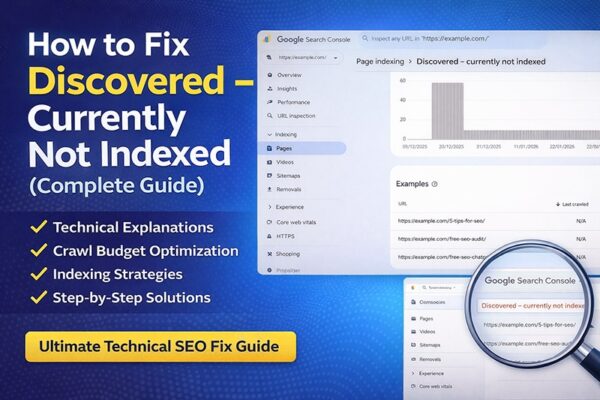
Solve "Discovered – Currently Not Indexed Problem"
Step-by-step solutions used by SEO professionals to get pages crawled and indexed faster in Google Search Console.
Google Search ConsoleCrawl BudgetTechnical SEOWordPress
If you run a website or blog, you may have seen the status "Discovered – Currently Not Indexed" in Google Search Console. You publish new content, Google finds the URL — but the page never appears in search results.
This guide explains why this happens and how to fix it step-by-step using proven technical SEO strategies used by professionals in the USA and globally.
By the end of this article, you will understand:
What Discovered – Currently Not Indexed means
Why Google delays crawling your pages
How crawl budget and technical SEO affect indexing
Proven methods to get your pages indexed faster
What "Discovered – Currently Not Indexed" Means
When Google labels a page "Discovered – Currently Not Indexed", it means:
Google knows the URL exists
Google has not crawled the page yet
The page is waiting in Google's crawl queue
This typically happens when Google finds URLs from:
XML sitemaps
Internal links
External backlinks
Canonical tags
Website navigation
In simple terms: Google discovered your page but has not visited it yet. This usually indicates a crawl budget problem or low priority signals.
Discovered vs. Crawled — What's the Difference?
Many SEO beginners confuse these two statuses. The fixes for both issues are different, which is why understanding this distinction is critical.
Why Google Shows "Discovered – Currently Not Indexed"
There are several common reasons why this problem occurs. Identifying your specific cause is the fastest path to a fix.
📦
Crawl Budget Limitations
Google assigns every site a crawl budget. Duplicate pages, parameter URLs, or thin content causes delays on new pages.
🔗
Weak Internal Linking
Pages with few internal links are treated as low priority. A post buried 4–5 clicks deep may stay undiscovered for weeks.
⚡
Server Performance Issues
Slow TTFB and server overload cause Google to reduce crawl rate to protect your server from being overwhelmed.
🗂️
Too Many Low-Quality URLs
Tag pages, search pages, and filter parameter URLs waste crawl budget and delay indexing of important content.
🆕
New Website / Low Authority
New domains have low crawl demand. Google does not fully trust the domain yet, so crawl frequency is limited until authority builds.
Crawl Budget — Deep Dive
Deep Dive Crawl Budget Limitations
Google assigns every website a crawl budget — the number of pages Googlebot crawls within a specific time. This problem is very common on ecommerce sites, large blogs, and news websites.
If your website has thousands of URLs, duplicate pages, parameter URLs, or thin content, Google may delay crawling new pages. Example of URL bloat wasting crawl budget:
🚫 URL Bloat Example# These all create separate URLs that waste crawl budgetexample.com/shoes?color=redexample.com/shoes?color=blueexample.com/shoes?size=10example.com/shoes?size=10&color=red
Detail Weak Internal Linking
If a page has very few internal links, Google considers it low priority. A blog post that is 4–5 clicks deep in the site structure may stay undiscovered for weeks.
Google prioritizes pages that are:
Linked from the homepage
Linked from category pages
Part of strong topic clusters
Detail Server Performance Issues
If your website has slow server response time, Google reduces crawling. Important factors include TTFB (Time To First Byte), server overload, shared hosting limitations, and CDN configuration. When Google detects slow servers, it protects your server by reducing crawl rate.
How to Fix "Discovered – Currently Not Indexed"
Work through these fixes systematically. Most sites see improvement within 2–4 weeks.
Fix 01
Improve Internal Linking
Internal linking is one of the strongest indexing signals. Link to new pages from your homepage, high-traffic blog posts, category pages, and pillar content. Pages with strong internal links get crawled much faster.
Fix 02
Submit an Optimized XML Sitemap
An XML sitemap helps Google discover pages faster. Best practices:
Include only important pages
Remove noindex pages
Remove redirect URLs
Remove 404 pages
Submit your sitemap in Google Search Console under Indexing → Sitemaps
Sitemap URLhttps://example.com/sitemap.xml
Fix 03
Fix Crawl Budget Waste with robots.txt
Use robots.txt to prevent Googlebot from crawling low-value pages:
Google crawls faster on fast websites. Key performance targets:
TTFB (Time To First Byte) under 200ms
Fast, dedicated hosting
Optimized and compressed images
CDN usage for global reach
Browser caching enabled
Recommended tools: Google PageSpeed Insights · GTmetrix · WebPageTest
Fix 05
Use the URL Inspection Tool
Open Google Search Console → URL Inspection → Request Indexing. This directly signals to Google that a page is ready and should be prioritized in the crawl queue.
Fix 06
Build Quality Backlinks
Backlinks from authoritative external websites increase crawl demand. Effective methods:
Guest posts on industry blogs
Resource page link building
Digital PR and media coverage
Competitor backlink analysis and outreach
Fix 07
Avoid Thin Content
Google avoids crawling and indexing pages it considers low-quality. Avoid publishing:
AI-generated thin articles without original value
Duplicate category pages
Short blog posts under 300 words
Fix 08
Reduce URL Depth
Keep important pages close to the homepage. Google prioritizes shallow page depth:
Track Googlebot's crawl activity at: Settings → Crawl Stats. Watch for drops in crawl rate, server response errors, and crawl request patterns over time.
Best Indexing Strategy — Step by Step
Follow this sequence for every new piece of content you publish:
1
Publish high-quality contentOriginal, in-depth content gets crawled faster. Aim for minimum 800 words with real value for readers.
2
Add internal links immediatelyLink from at least 2–3 existing high-authority pages on your site to the new URL.
3
Include URL in XML sitemapEnsure your sitemap is up-to-date and re-submit it in Google Search Console.
4
Request indexing via URL InspectionUse the Request Indexing button in Google Search Console for immediate signaling.
5
Build backlinks to the pageEven one or two quality external links can significantly increase crawl priority.
6
Improve overall page speedRun a PageSpeed audit and address any Core Web Vitals issues on the site.
7
Monitor indexing status weeklyCheck Crawl Stats and the Coverage report in Google Search Console regularly.
Final Thoughts
The "Discovered – Currently Not Indexed" issue is usually caused by crawl budget limitations, weak internal linking, poor site structure, or low domain authority.
By improving technical SEO, crawl efficiency, and content quality, you can significantly increase your indexing rate. The fixes above work for WordPress sites, Shopify stores, and any CMS.
Remember: Google prioritizes fast, authoritative, and well-structured websites. Every improvement you make to site speed, link architecture, and content quality compounds over time.
📘 Advanced Resource
Learn Advanced Technical SEO
Everything you need to audit, fix, and optimize your website for maximum Google visibility.
What does "Discovered – Currently Not Indexed" mean?
Google has found the page URL — via a sitemap, internal link, or backlink — but has not yet crawled or visited the page. It is sitting in Google's crawl queue.
How long does this status last?
It may last hours, days, or weeks depending on your site's crawl demand, authority, and server performance. High-authority sites often resolve this within hours. New sites may wait several weeks.
Is it bad for SEO?
Not always. New pages often show this status temporarily. It becomes a problem when important pages stay in this state for weeks, as they cannot rank in search results.
Does website speed affect crawling?
Yes. Slow websites reduce crawl efficiency. If Googlebot encounters slow server response times (TTFB), it reduces crawl rate to avoid overloading the server.
How can I check crawl activity?
In Google Search Console, navigate to Settings → Crawl Stats. This report shows crawl request volume, response times, and file type breakdown over the past 90 days.
🚀 Free Tool
Get Your Free SEO Audit Report
Find out exactly what's holding your website back from ranking on page one.



 My LinkedIn: linkedin.com/in/kashif-rehman-